Learn
Last updated April 10, 2026
How to remove people from photos
without turning the background into mush
If you want to remove someone from a photo, the useful job is not only to delete a body-shaped area. It is to reconstruct the scene so the image still feels like one believable photo. That is where AnyCap image generation plus image understanding gives the agent a stronger workflow than a one-click magic eraser.
Answer-first summary
A useful people-removal workflow is reconstruction plus QA. AnyCap lets the agent remove the unwanted person, inspect the repaired background, and decide whether the frame is actually ready to reuse in a listing, a blog post, or a travel photo set.
Generated proof
A real tourist-overlook cleanup, not a mockup
This page uses a real proof pair generated with AnyCap. The left frame is the original overlook photo with two foreground subjects. The right frame removes the woman in the red jacket while keeping the remaining traveler, the stone railing, and the ocean scene coherent.
Source photo
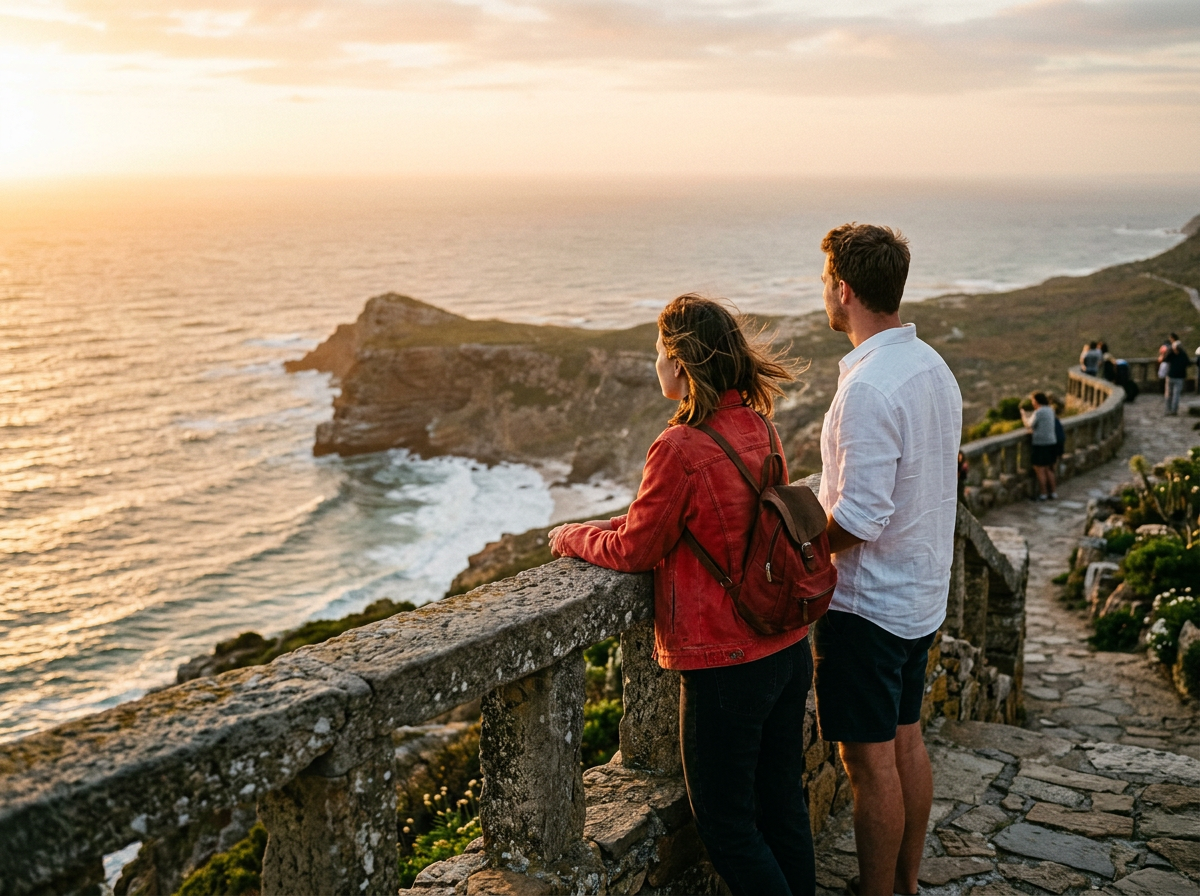
Edited result

Edit prompt used with AnyCap
remove the woman in the red jacket completely, keep the man in the white shirt exactly where he is, reconstruct the stone railing naturally behind her, preserve the ocean cliff overlook and sunset lighting, no extra people, no text, no watermark
Why this proof matters
- It shows a real reconstruction problem instead of a trivial crop or full regeneration.
- The repaired railing and coastline make the cleanup legible at a glance.
- It demonstrates the stronger claim AnyCap can honestly support: removal plus inspection, not blind erasing.
The left image is the original photo. The right image is the AnyCap result with one person removed and the scene reconstructed from that same source image.
Quick answer
The hard part is scene repair, not deletion alone
Most people-removal tools are judged by whether the unwanted person disappears. In practice, the useful question is whether the frame still looks intact after the removal. That is why the stronger workflow is erase plus reconstruction plus QA.
- The prompt should say who must disappear and what parts of the photo must stay exactly the same.
- The repaired area matters more than the removal action itself because bad fill makes the edit obvious.
- A good workflow branches into a second cleanup pass when railings, horizon lines, or repeating textures still look off.
Travel photos
Best when one extra tourist or passerby ruins an otherwise useful scenic photo.
Listings and property shots
Useful when the scene is right but one person makes the image feel staged, distracting, or unusable.
Social and editorial reuse
Strong when you want to keep the original photo composition but clean a single distracting subject before publishing.
Workflow
Five steps from crowded frame to cleaner photo
Step 1
Start with the photo that already works
Use the image you actually want to keep. This workflow is strongest when the composition and lighting are already good and only one subject needs to go.
Step 2
Name the person to remove precisely
Describe clothing, position, and relative location so the edit does not drift toward the wrong subject.
Step 3
Protect the parts that must stay
Say what should remain intact, such as the horizon, railing, main subject, or camera framing.
Step 4
Inspect the repaired zone carefully
Look for broken edges, cloned textures, warped railings, or lighting mismatches where the person used to be.
Step 5
Run a second pass only if needed
If a small artifact remains, do a tighter cleanup prompt instead of regenerating the whole photo from scratch.
Why the workflow matters
Button-click removal versus an agent workflow
Main objective
One-click eraser
Make the unwanted person disappear fast, even if the repaired area looks obviously synthetic.
AnyCap workflow
Remove the person and keep the scene believable enough to reuse without embarrassment.
What stays protected
One-click eraser
Usually under-specified, so nearby subjects or background structure can drift.
AnyCap workflow
The prompt names the person to remove and the scene details that must remain unchanged.
Quality control
One-click eraser
The user visually checks the final frame and hopes nothing subtle broke.
AnyCap workflow
The agent can inspect the result with image reading and decide whether a tighter cleanup pass is needed.
Model choice
The current AnyCap stack for people-removal workflows
Best first pass
Nano Banana Pro
The best first choice when you already have the source photo and want a stronger person-removal edit without losing the surrounding scene.
Fast iteration
Nano Banana 2
Useful when you want several cleanup variations quickly and can trade a little fidelity for faster branching.
QA layer
Image Understanding
Use AnyCap image reading after the edit to check whether the remaining frame still looks coherent and artifact-free.
What to validate
Four checks before you call the photo done
Background continuity
Look at the exact area where the removed person stood and confirm the fill matches nearby stone, path, sky, or water patterns.
Protected subject still intact
If one person stays in frame, confirm pose, clothing, scale, and edge detail were not warped by the edit.
Lighting remains consistent
The repaired area should follow the same sunset, shade, or indoor light direction as the original photo.
No visible AI residue
Check for duplicated textures, broken railings, invented limbs, random text, or watermark artifacts before export.
CLI examples
Example commands aligned with the current schema
Remove one person from a photo
anycap image generate \
  --model nano-banana-pro \
  --mode image-to-image \
  --prompt "remove the woman in the red jacket completely, keep the man in the white shirt exactly where he is, reconstruct the stone railing naturally behind her, preserve the ocean overlook and sunset light, no text, no watermark" \
  --param images=./source-overlook.png \
  --param aspect_ratio=4:3 \
  --param resolution=2k \
  -o cleaned-overlook.png
Run a tighter repair pass if artifacts remain
anycap image generate \
  --model nano-banana-2 \
  --mode image-to-image \
  --prompt "keep the same man and the same coastline, refine only the stone railing and path where the removed person stood, remove any duplicated texture or broken edge, no text, no watermark" \
  --param images=./cleaned-overlook.png \
  --param aspect_ratio=4:3 \
  --param resolution=2k \
  -o cleaned-overlook-pass-2.png
QA the repaired frame
anycap actions image-read \
  --file ./cleaned-overlook.png \
  --instruction "Describe the image, confirm whether only one foreground traveler remains, and mention any visible artifact in the repaired railing, path, or coastline. Also call out any visible text or watermark."
FAQ
Questions that usually come next
Can AnyCap remove one person but keep another in the same photo?
Yes. The prompt should clearly identify the person to remove and the subject who must remain. The workflow works best when the protected person is described explicitly by position, clothing, or role in the frame.
Is this better than a phone magic eraser?
It is better when the edit matters enough to inspect. A phone eraser may be enough for a casual draft, but AnyCap is stronger when you want a cleaner reconstruction and a QA pass before you reuse the image.
What kind of photos are hardest for person removal?
Tight crowds, repeated patterns, and scenes where the removed person blocks important structure are harder. Railings, text, faces, and strong perspective lines are the places where you should inspect the result most carefully.
Can I use the same workflow for removing emojis or objects too?
Usually yes. The same image-to-image plus QA workflow can be adapted to remove an emoji, sign, bag, or another unwanted object as long as the prompt clearly protects the parts of the scene that should stay.
Next move
Continue from the workflow that matches the next edit
How to Brighten a Photo Online
Go here when the composition is already right and the next problem is harsh shadow or underexposure rather than a distracting person.
How to Change a Photo Background
Use this when the person stays but the environment around the subject needs to change.
Nano Banana Pro
Read the model page when you want the current best-fit edit model for source-photo cleanup workflows.
Install AnyCap
Start here when you want the CLI ready before trying the same workflow on your own images.